
Want to add beautiful new homes or community lots to your Sims world? This quick guide shows you exactly how to download and install custom lots—including the ones here on Sweet Simmer Homes—so your Sims can live their best (stylish) lives!
📋 What You’ll Learn:
- How to check if a lot works with your game
- Where to place downloaded files
- How to find your new lots in-game
- Tips for a smooth installation!
✅ Check What Packs Are Required
Before you download anything, always check if the lot requires specific expansion or game packs. If you don’t own a required pack, the game will remove or replace missing items—so your lot might not look the same!
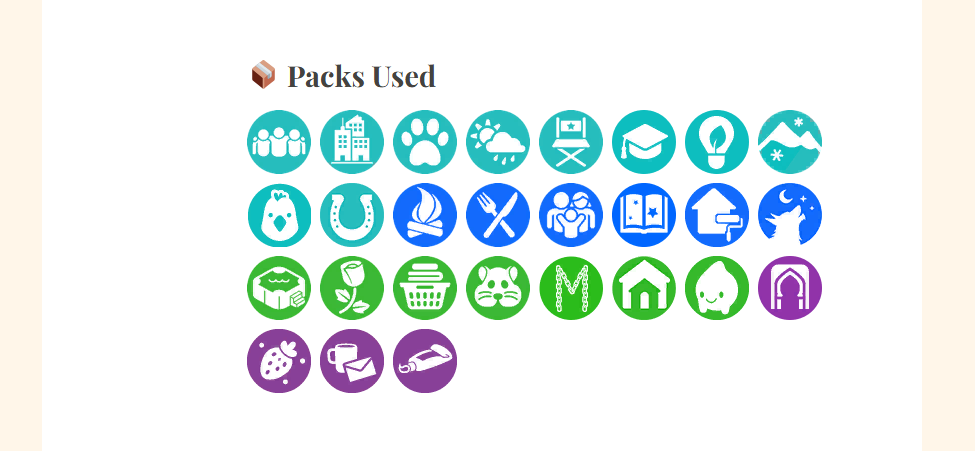
💡 All Sweet Simmer Homes listings clearly show the required packs—so no surprises!
📥 Download the Lot Files
You’ll find two download options on my posts:
- Direct Download – Instant download, straight to your computer.
- SimFileShare – Takes you to the download page to grab the file.
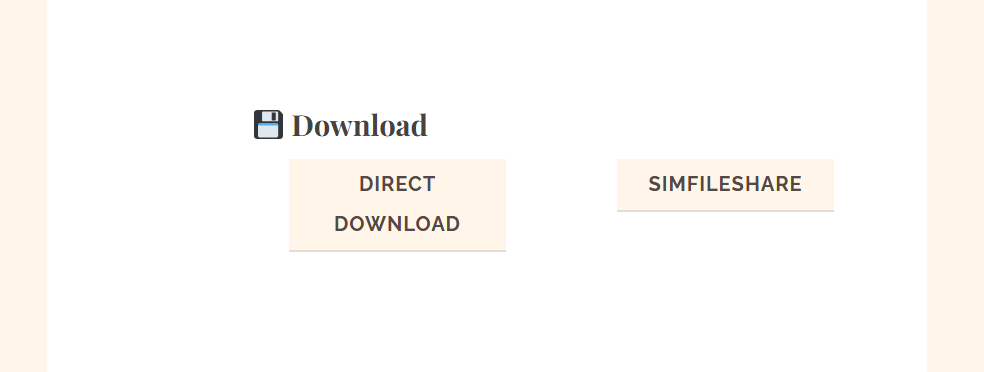
After downloading, you’ll find the file in your Downloads folder.

📁 Move the Files to Your Tray Folder
- Extract the file if it’s in a
.zipor.rarformat (see next step). - Select the extracted files (they’ll have extensions like
.trayitem,.blueprint,.bpi). - Click Move To > Choose Location.
- Navigate to:
Documents > Electronic Arts > The Sims 4 > Tray - Click Move—and you’re done!

🧰 Extracting the Files
Most downloads come zipped. You’ll need a program like:
- UltimateZip (my fave)
- WinRAR
- 7-Zip
Just right-click the downloaded zip file and select:
➤ Extract Here or Extract to [folder name]
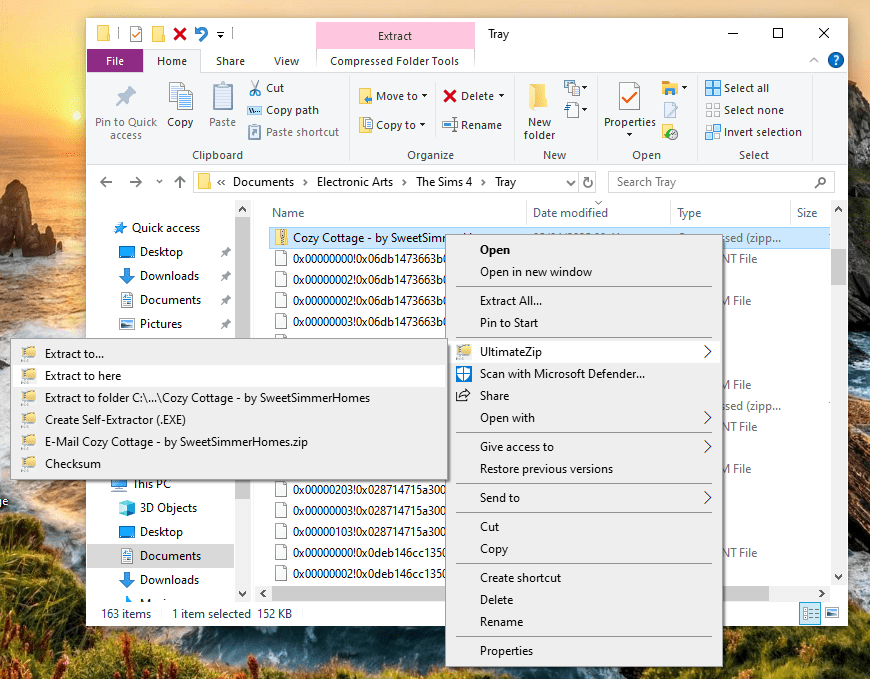
Now you’ll see files like:
.trayitem.blueprint.bpi- (maybe
.sgior.room)

You can now delete the original zip file to keep things tidy!
🎮 Load Your New Lot in The Sims 4
- Start your game and head to the Gallery (top-right, looks like a lightbulb).
- Click My Library.
- Find your new downloaded lot!
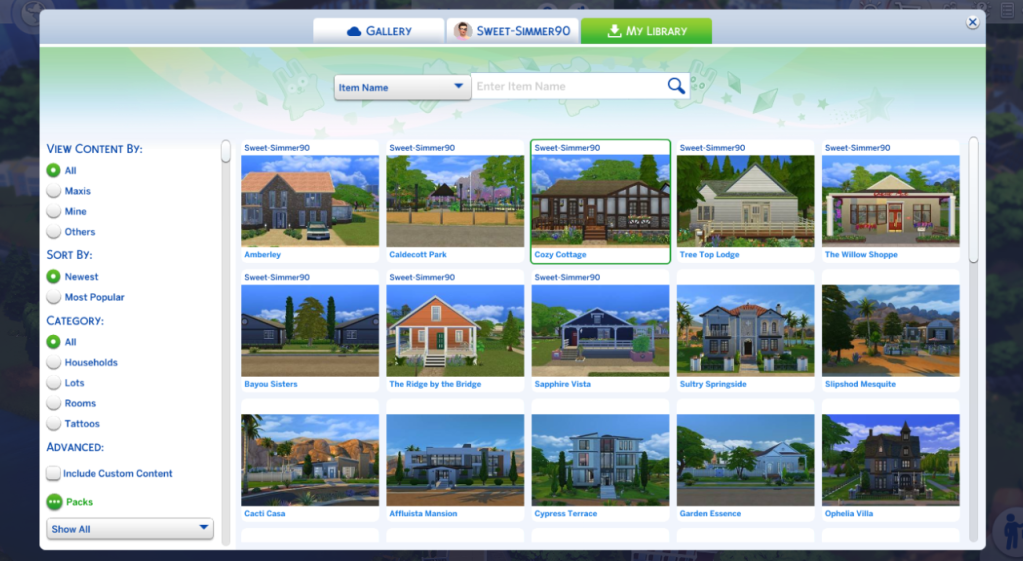
- Click Place Lot, then pick a location shown in green.

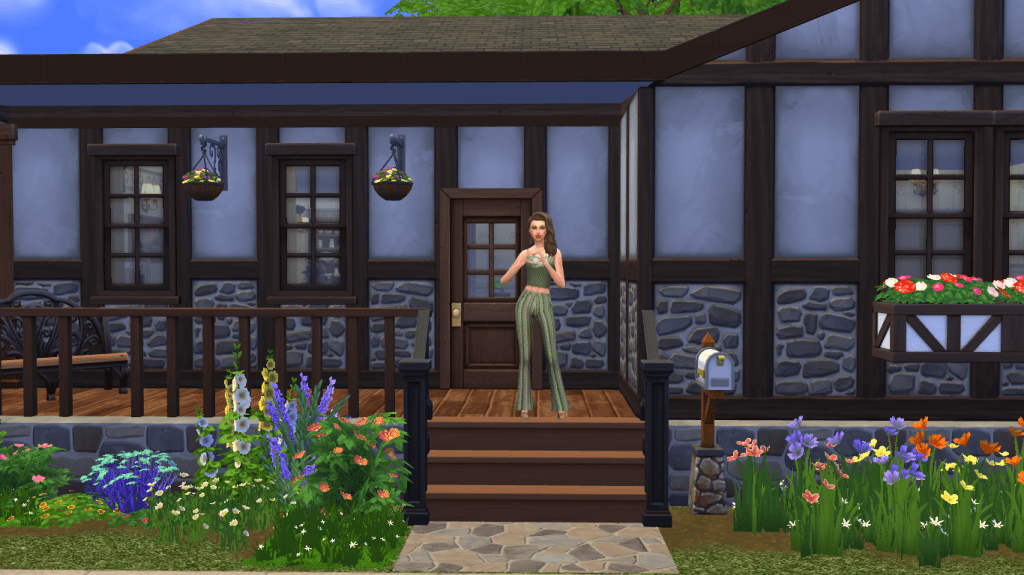
- Confirm placement—and voilà! Your beautiful new build is ready.
Now just move your family in and enjoy 🏡✨
💡 Quick Notes:
- 💾 These builds are completely CC-free—no mods, no custom content!
- 🧽 Make sure your game is updated to avoid issues.
- 🌍 If a lot doesn’t appear, double-check that your Gallery filters are turned off.
Got questions? Drop them in the comments or message me—I’m happy to help! 💌

 Sweet Simmer Homes